Showing posts with label google. Show all posts

Tuesday, 28 January 2014

Basic Guide on How to install Android On a PC

Windows 8’s bold grab for tablet relevance may snatch headlines, but it isn’t the only operating system looking to extend its established supremacy over a whole new class of devices. As the PC market hemorrhages, more and more manufacturers are turning to Google’s Android OS to power PCs that once carried Windows alone. From hybrids to all-in-ones to an Intel-promised flood of incredibly cheap “Droidbooks,” Android cometh.
But wait! Isn’t Android made for smartphones? And weren’t the first Android-powered laptops a bit … disappointing? And aren’t there some lingering questions about how Android performs in a PC-type environment?
asus eee pad transformer prime
Yup.
Fear not, all ye curious. The intriguingAndroid-x86 project has ported Google’s open-source OS from the ARM processors common in smartphones and tablets over to the x86 chips found in everyday computers, so you can take Android for a spin on your PC before plunking cash down on one of the latest examples of computing convergence. And even if you have no plans to buy an Android PC, playing with Android on your current PC is just plain fun.
How does Google’s mobile-focused operating system stack up on a full-size, not-so-mobile computer? You’ll know firsthand after giving Android a test drive in a virtual machine.

Why a virtual machine?

Admittedly, virtual machines aren’t as peppy as physical ones unless you have a bunch of system resources to toss around. And yes, you can install Android on your computer’s hard drive—but I don’t recommend even dual-booting this particular OS.
Hardware support for the operating system can be hit-and-miss, though the Android-x86 project mitigates that somewhat by providing several ISO files built around specific hardware, such as Asus and Lenovo ThinkPad laptops. Even so, running Android in a virtual machine is more consistently headache-free than dual-booting it. (Trust me—I tried it on three different machines.)
If you want to dual-boot Android regardless, the steps for doing so are basically the same as dual-booting Windows 8, at least up until the point of actually installing Android. From there, you’ll want to pick up from the “Install Android on your PC” segment below.
No matter how you decide to roll, you’ll need to grab some virtual machine software—we’re using Oracle’s excellent (and free) VirtualBox for this article—and the latest version of the Android-x86 port available. If an ISO for your specific laptop model is available, grab it.
Before we begin, note that you can click any image in this article to expand it to full size.

Get VirtualBox up and running

Once you’ve downloaded all the software, open VirtualBox and click the big blue Openbutton in the toolbar to begin. A Create Virtual Machine window will appear. Name your digital Android PC anything you like, but be sure to select Linux as the type of operating system, and Linux 2.6 as the version. Click Next.
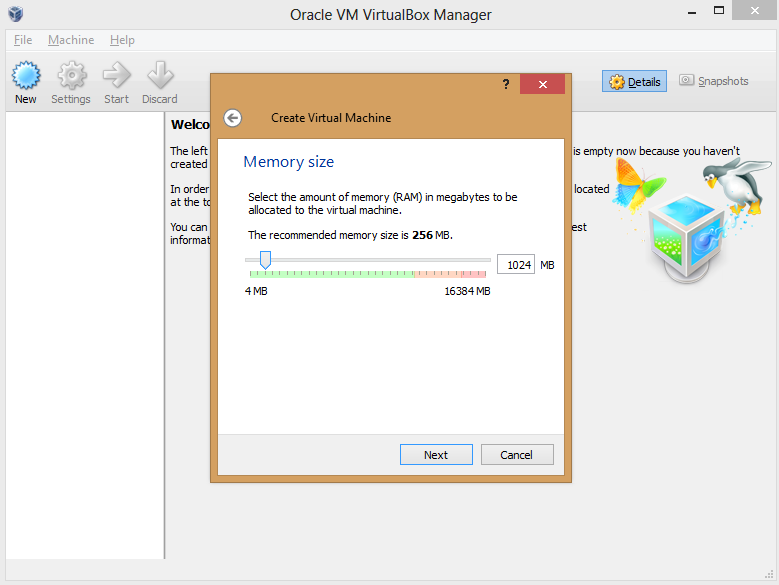
In the option screens that follow, you have to configure your VM’s hardware allocation. Give it at least 512MB of RAM if you can, though Android-x86 can run on 256MB of RAM if you’re using a resource-strapped PC. The more memory you can spare, the smoother the results will be, though you don’t want to allocate so much to Android that your native experience suffers while the VM is active.
Create a virtual hard drive using the default options, adding more storage if you wish. (Remember: Android was made for phones, so it doesn’t take much space, even with multiple apps installed.)
Boom! The VM appears in the VirtualBox manager.
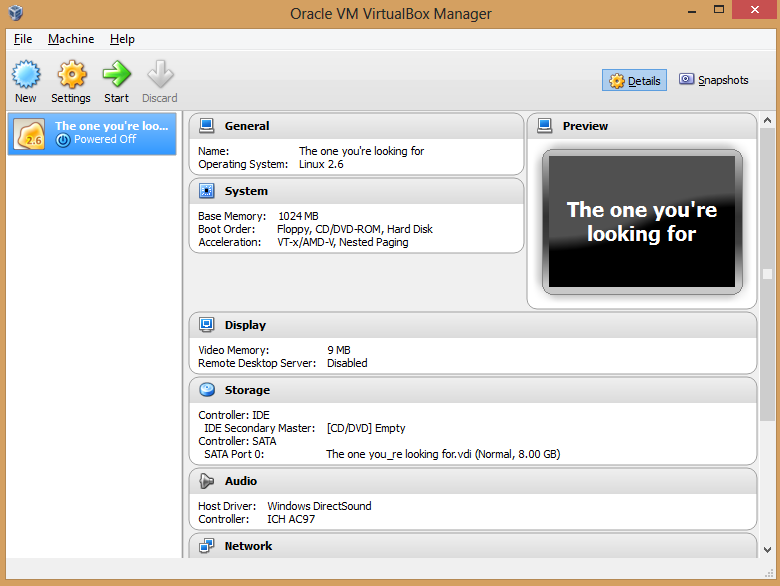
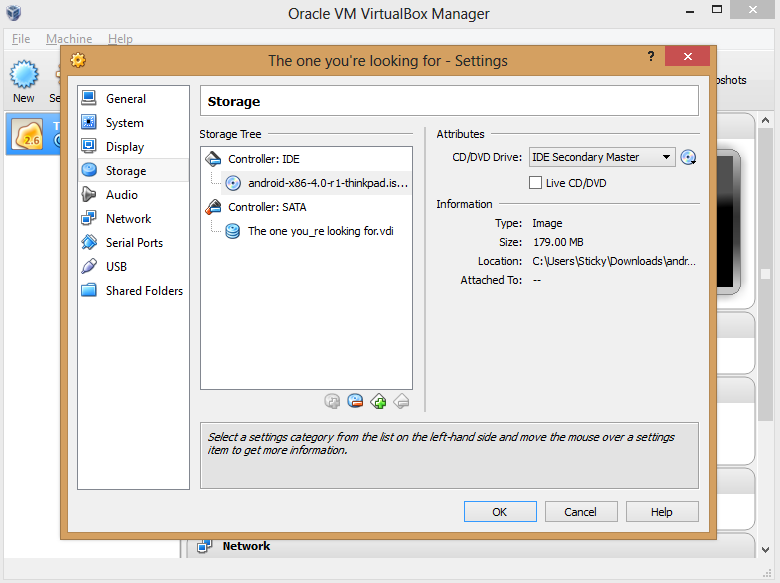
Next, you need to point the VM at your Android-x86 ISO. Click the Storage button in the VM manager and, in the window that appears, select the Empty option underneath ‘Controller: IDE’ to bring up various ‘Attributes’ options to the right. There, click the disc icon to the right of ‘CD/DVD Drive’ and select Choose a virtual CD/DVD disk file from the drop-down menu that appears. Simply browse your hard drive and select the Android-x86 ISO to load it in the virtual machine, and then click OK when you’re done.
You’re not quite finished yet, though. Click the Audio option, and in the window that appears, click the drop-down ‘Audio controller’ box and select ICH AC97. If you leave it on the default Soundblaster 16 setting, your Android VM’s audio won’t work properly.
Got it? Great! Now you’re ready to install Android on your PC. The process is a bit trickier than your standard Windows installation.

Install Android on your PC

Click the name of your Android-x86 VM in VirtualBox’s left pane, and then click the big green Start arrow. After clicking OK on any dialog boxes that pop up—be sure to read them!—you’ll quickly notice that you can’t use your mouse during installation. Use the arrow keys to scroll down to Installation, and then press Enter. Press Enter to selectCreate/Modify partitions on the next screen as well.
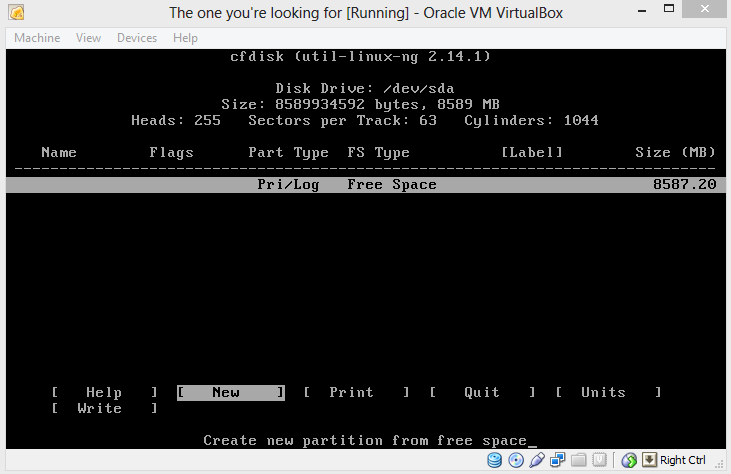
If you usually stick to graphical interfaces, the next menu may throw you for a loop, but it’s nothing to be scared of. Just navigate to New and press Enter again. Select Primary as the partition type, and then press Enter once more to set the partition to the default size. You’ll see the following screen.
Press Enter on the Bootable option, which should add ‘Boot’ under the ‘Flags’ listing, next to the computer name. With that done, select the Write option. A warning appears, threatening that writing to disk will wipe any data already on the disk. Who cares? This is a virtual machine, you silly installation software. Type yes, and then press Enter yet again.
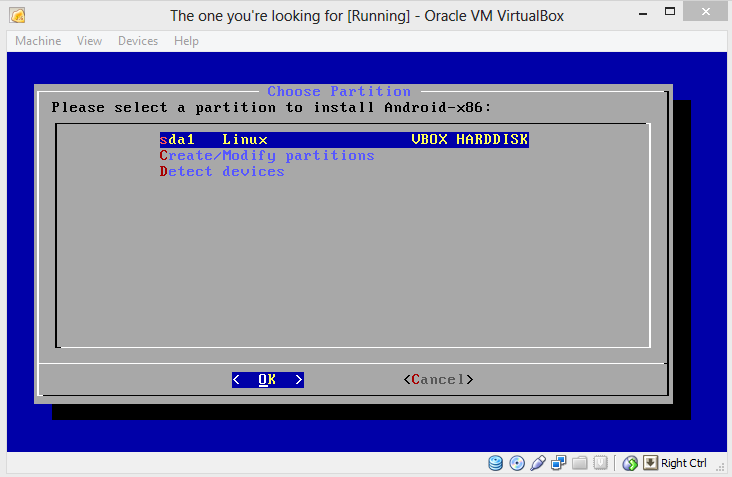
Highlight the Quit option and press Enter to return to the Choose Partition screen, which now lists the ‘sda1’ partition you created on the virtual hard drive. Press Enter again. You’ll see a list of formatting options. Select ext3, press Enter, and select Yes when asked if you really want to format the disk.
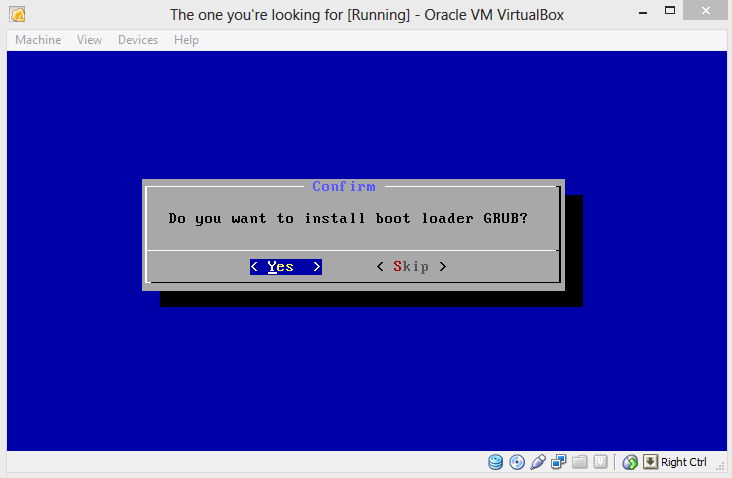
Do you want to install boot loader GRUB? Yup! You also want to install the /system directory as read/write when asked.
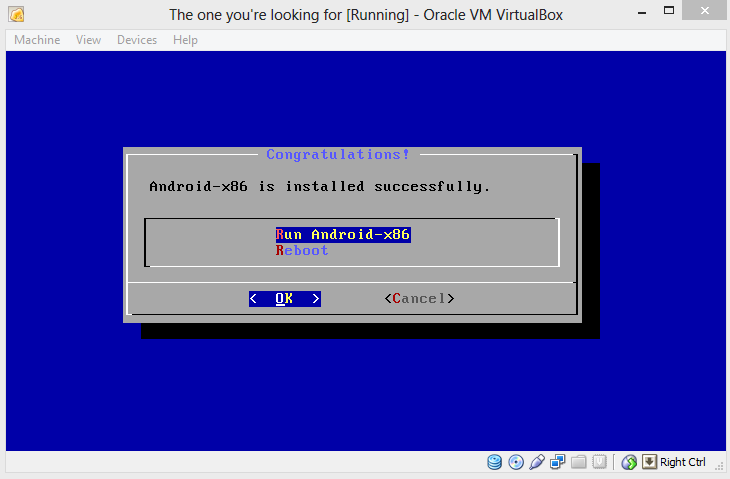
Aaaaand there’s the screen we’ve been waiting for. Run Android-x86.

Assess Android
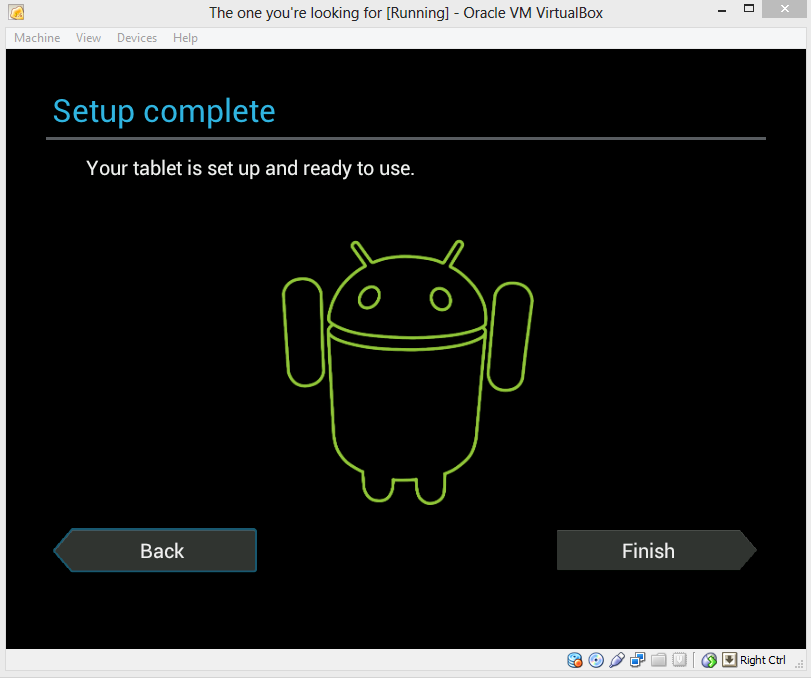
You’re going to set up the operating system the way you would on a new Android phone or tablet. It’s pretty straightforward, and you can even connect the Android-x86 VM to your Google account. But before you do that, you need to coax a mouse cursor on screen, because trying to navigate a touchscreen-optimized OS by keyboard is maddening.
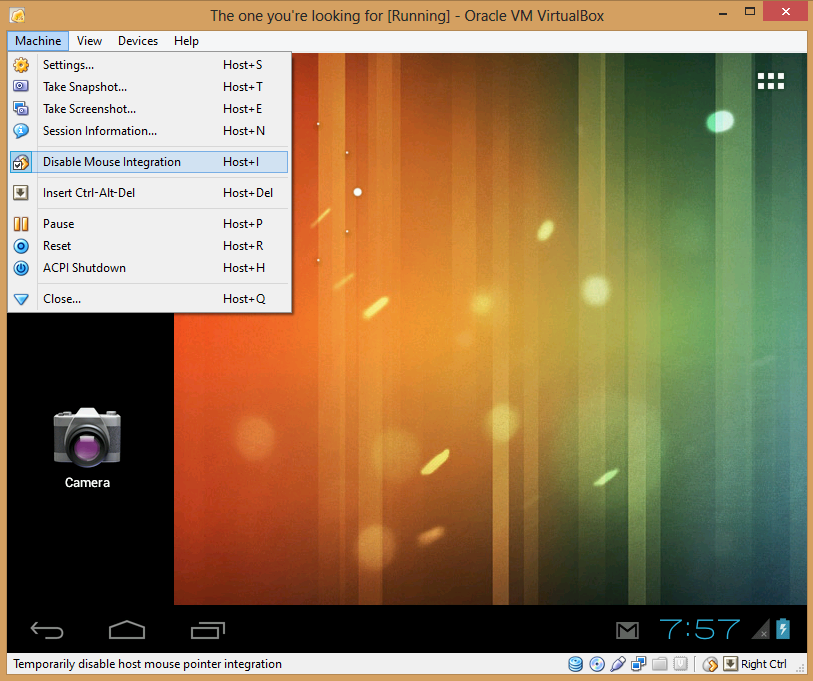
Click Machine in VirtualBox’s toolbar, and select Disable Mouse Integration. Dialog boxes may appear; if so, click through them and continue. Disabling mouse integration allows you to manually control whether your mouse is controlling your primary OS or Android-x86. Pressing the right Ctrl button on your keyboard switches between the two operating systems. To swipe, click and hold the mouse button, and then move the mouse.
With that taken care of, you’re free to explore Android on your PC!
Don’t expect a flawless experience with Android-x86. You can’t sync your Google account’s apps to the VM, despite what the setup process implies—at least not yet. (Fortunately, Android-x86 ships with Google Play installed, and most apps I’ve tried work just fine, though you might notice the occasional wonkiness.) Nor does the virtualized OS work with any of the touchscreen displays I’ve tried. And yes, performance can be kind of poky, no matter how much RAM you toss at Android-x86.
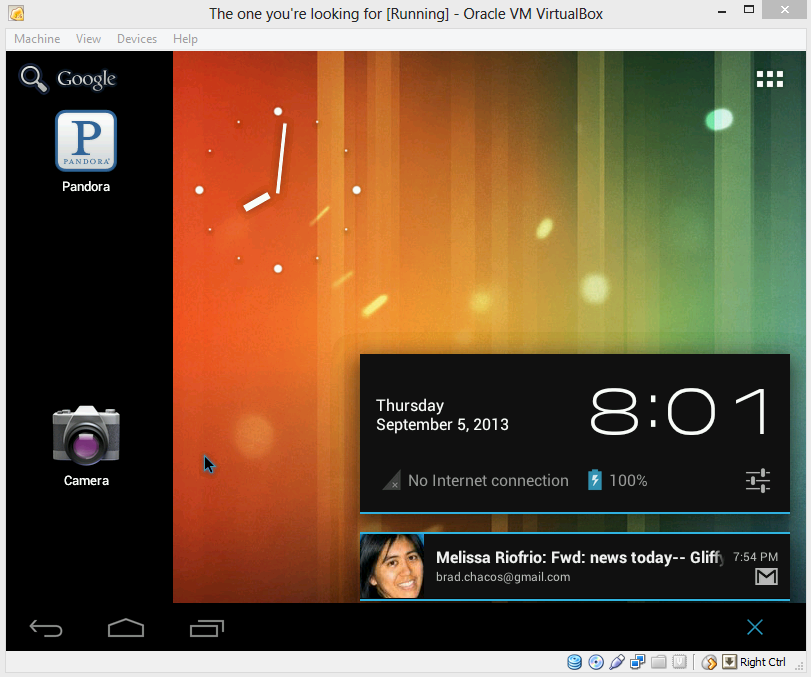
That being said, giving Android a whirl on your PC will nevertheless give you a good feel for what’s possible on an Android-powered laptop. The result isn’t perfect, but if you give it a shot, I think you’ll wind up pleasantly surprised. Android wasn’t made for big screens, but all those smartphone-optimized apps hold up okay, and a ton of them are completely free, completely awesome, and can’t be found on proper PCs.
And hey—for what it’s worth, the Android Gmail interface blows away the ugly webmail UI.v

Basic Guide to install Android on Windows 8 Tablet

Why Install Android On A Windows Tablet?

There are certain things you should expect from a tablet operating system. You might even want to demand them.
acer iconia w700 tablet pc review   How to Install Android on Your Windows 8 Tablet

While a Windows PC – which a Windows 8 tablet with a PC CPU undoubtedly is – has a vast library of software available, there are a few useful things that can be experienced on Android. If you don’t currently own an Android tablet, these things (such as an improved keyboard experience) can be replicated by dual booting your Windows tablet with Android. It costs nothing, and thanks to the fast boot time on Windows 8, switching between the two operating systems is painless.
Note, however, that you’ll be restricted to apps that have support for x86 systems. These are growing in number, but don’t expect to be able to run all apps in the Play store.

What You’ll Need To Install Android On A Windows 8 Tablet

Preparation for this project is a little in-depth, especially if you’re new to Windows 8.
We’ll get the straightforward stuff out of the way first. You’ll need a USB flash drive with at least 512 MB of storage to hold the installation media; the stick should be formatted to FAT file system. Also, make sure you have a USB keyboard and a USB hub – I’d recommend a small, unpowered hub, since a powered hub may take some time to initialize – which means the keyboard won’t be connected by the time you need to press F12. So, unpowered USB hub it is.
Software is also required. Begin by downloading the Win 32 Disk Imager from Sourceforge – this is used to write the disk image to your USB stick.
Once this is downloaded, head to Intel’s Open Source Technology Center and select the Generic UEFI Installer image of the version of Android you wish to install. After download has completed, make sure you unzip the file.

Prepare The USB Stick

With Android downloaded, you’ll need to write it to the USB stick. Insert the device into your tablet or USB hub and unzip the Win 32 Disk Imager tool.
muo windows8tablet android disc image   How to Install Android on Your Windows 8 Tablet

Run Win32DiskImager.exe and browse to the unzipped Android installer, selecting Save to add it to the tool.
muo windows8tablet android disk imager   How to Install Android on Your Windows 8 Tablet

Next, ensure that the correct drive letter for your USB stick is selected under Device, and when you’re ready click Write to begin installation.
Following completion, Win 32 Disk Imager should inform you that writing the data has completed – you’re now ready to proceed.

Configuring Your Windows 8 Tablet For Android Installation

You can’t just install a second operating system on a device designed for Windows 8 without making a few adjustments to the system setup.
muo windows8tablet android uefi   How to Install Android on Your Windows 8 Tablet

First, you’ll need to ensure Secure Boot is disabled. Open Settings > Change PC Settings > Update and recovery > Recovery, and select Restart Now. From here use your arrow keys to select Troubleshoot then Advanced Options > UEFI Firmware Settings to open the BIOS.
muo windows8tablet android security   How to Install Android on Your Windows 8 Tablet

Here, find Security in the left-hand menu and set a Supervisor password. Once this has been added, open Boot, find the Secure Boot option and set it to Disabled.
muo windows8tablet android boot   How to Install Android on Your Windows 8 Tablet

With that done, hold down the Power to restart, then hold the Windows buttons as well until the screen comes back on. This enables a quick shortcut back into the BIOS screen where you should ensure UEFI Mode is selected.
Next, switch the tablet off, and connect the USB hub directly to the USB port (as opposed to any of the ports on any docking station you might have). With the keyboard and USB stick connected to the hub, boot up your tablet PC, pressing F12. In the boot menu, use arrow keys to select the USB device and follow the instructions to setup dual boot mode and allocate space for Android using your device’s volume keys.
Different versions of the Android installer have slightly different steps. For this installation, I selected:
Do you want to preserve Windows and dual boot? Y
Do you want to resize Windows to make more space? Y (This forces a repair cycle when you boot Windows 8.)
Enter new size in MiB for Windows: Enter for default option.
Install GummiBoot bootloader? Y
Enter boot menu timeout (0=no menu)(min=0, max=60, enter=5) 15
Once you have done this the installation will proceed. Upon completion you should see the message:
“Installation now configured. Press enter to continue”
If all goes according to plan, when you next come to boot up the tablet you should see a boot menu, where you can select between Android and Windows 8.

Running Android on a Windows 8 Tablet

Certainly in my case while preparing the installation for this tutorial, I discovered that things didn’t go quite as planned. Although the repair cycle took a while (and the Acer Iconia W700 doesn’t actually tell you it is doing a repair cycle), the computer eventually booted… into Windows 8.1. A couple of reboots later and there was still no sign of the boot menu.
muo windows8tablet android website   How to Install Android on Your Windows 8 Tablet

Inconveniently, the only way to open Android at present is to hold F12 when booting to display the boot menu, something that may be tricky in some scenarios. I also found that Bluetooth didn’t work in Windows, but once I’d booted Android, opened Settings and toggled Bluetooth,the subsequent reboot into Windows had Bluetooth back up and running.
When everything is installed, and Android booted up, it works pretty much as you might expect. Not all features are available as the x86 version is unofficial. As such you’ll need to install gApps to get things like Google Play and Gmail. This is true of any unofficial Android build and we’ll take a look at it in a future guide.

Sunday, 26 January 2014

How to root Google Nexus 5


Ok, the Google Nexus 5 has been out there for a couple of weeks and we think it's about time for a root tutorial. So, without further ado, here is our step by step guide with images.  
root nexus 5 teaser

As always, gaining root access is risky, and if you do not follow the procedure properly, you can end up with an unusable phone. Also, please note that all data is deleted during the operation so back up all your data first. Neither AndroidPIT or myself will be held responsible for anything unflattering that may happen to your Nexus 5.

The following procedure is valid only for the Google Nexus 5.

Prerequisites

Install the Nexus 5 drivers on your PC (just plug it in and wait a few minutes, it will install them automatically).
Ensure that you have Administrator rights on Windows (if you do not know what these are, you probably haven't got them).
Make sure your Nexus 5 has at least 60% of battery. 70% is better, and fully charged is... you get the drift.

Downloads

Android SDK:
The general procedure is the same as on Windows, but the commands to use in the terminal are different on Mac and Linux. This tutorial is for a PC running Windows.
Custom Recovery:
Root:

I. Installing ADB and Fastboot

1. Download the Android SDK for your computer's operating system and unzip it in a folder named "Android SDK''.
2. Launch "SDK-Manager.exe" and install the following packages:
  • Tools > Android SDK Tools, Android SDK Platform-Tools
  • Extras > Android Support Library, Google USB Driver
3. Look for the new "Platform-Tools" folder in the "Android SDK" directory.
nexus 5 root sdk
The download takes a certain time, but everything is automatic. Aint life grand?

II. Unlocking the bootloader

1. Turn off your Nexus 5.

2. Reboot into fastboot mode by pressing and holding the Volume Down + Power button.

3. Connect your Nexus 5 to your computer with a USB cable.

4. Open the Android SDK > SDK > Platform-Tools directory then right-click in an empty area while holding the shift key.

5. Click "Open the command prompt here".

6. Enter the following command:
fastboot devices
nexus 5 root fastboot devices
If you do not get a serial number (as above), your drivers are not installed. 
If you get a serial number, it's good and you can continue. Otherwise, your drivers are not installed correctly.

7 . Enter the following command:
fastboot oem unlock
8 . On your Nexus 5, confirm with "Yes" using the Volume keys to move and the Power button to confirm.

9 . Enter the following command:
fastboot reboot

III. Installing the custom recovery

1. Turn off your Nexus 5

2. Reboot into fastboot mode (as in Section II)

3. Copy the custom recovery file downloaded earlier into the Android SDK > SDK > Platform-Tools directory. Rename the file "recovery.img". If it does not work, simply rename the file "recovery" without the "img".

4. In the command prompt window (as per Section II), enter the following command:
fastboot flash recovery recovery.img
nexus 5 root fastboot flash recovery
The custom recovery installation procedure only takes a few seconds. 
5. On your Nexus 5, use the unusable Volume buttons to select the "Restart bootloader" option and press the Power button.

6. You can now verify the custom recovery installation by entering "Recovery Mode". If you arrive on the CWM screen, the recovery is all good.

IV. Root

1 . Reboot your Nexus 5 normally. Copy the previously downloaded file "SuperSU v1.65" to the root of your smartphone.

2 . Reboot into fastboot mode (as in Section II) and choose Recovery Mode.

3 . Choose the "install zip from sdcard" option.

4 . Select "choose zip from sdcard".
root nexus 5 recovery

5 . Locate the "SuperSU v1.65" file and select it.

6 . Confirm with "Yes".

7 . Once the file installation is complete, restart by selecting "go back" then "reboot now".

8 . Final check: install an application to verify root such as Root Checker. If everything is green, it's all good! Congratulations, your Google Nexus 5 is rooted!

Any questions can be directed to the Nexus 5 Root forum.

How to Unlock Bootloader-Flash Recovery (TWRP)-Root-Restore Back the Nexus 7

[TUTO+VIDEO] AIO Unlock Bootloader-Flash Recovery (TWRP)-Root-Restore Back the N7 FLO

This tutorial All In One is for all owners of the NEW NEXUS 7 FLO (2013 Edition). I've tried to be clear, helpful and simple 


....-ox=O=xo-....
POST #1 => [TUTO + VIDEO] AIO Unlock Bootloader, Flash Recovery (TWRP) and Root your Nexus 7 FLO

....-ox=O=xo-....
POST #2 =>[TUTORIAL]Download Factory Images Nexus 7 FLO - Restore back STOCK JSS15J ONLY
....-ox=O=xo-....
POST #3 => [HOW TO] FLASH MORE FASTER WHEN YOU USE FASTBOOT LINE COMMAND


....-ox=O=xo-....
Quote:
Warning!
This guide and its guidelines are meant only and only for the new Nexus 7 "FLO" (2013).
Do not attempt to try this on the older Nexus 7 or any other device.
Applying this to any other variant might brick the device.
Read and understand the instructions carefully before proceeding any further.
....-ox=O=xo-....
Quote:
Pre-requisites:
THIS GUIDE IS ONLY FOR WINDOWS
1) This point is really important. You’re going to lose all your data on the device including the internal storage. So back everything up.

2) Download and Install 7zip or any other archive manager as WinRAR etc...

3) Download and install Android SDK

OR

3Bis)Download The ADB and Fastboot Tools in the same Tool ==> platform-tools.zip - md5: 15e771613370afe3c70e0be1454d2ef1 - size: 346.8KB

4) Put these 3 files in where your fastboot folder is installed; ex => => disk C: root
Unzipped this file on the folder "platform-tools" and you will find 11 files:
- aapt
- adb
- AdbWinApi.dll
- AdbWinUsbApi.dll
- aidl
- dexdump
- llvm-rs-cc
- fastboot
- dx
- NOTICE
- source.properties


5) Enable USB Debugging Mode on the tablet to connect it with the computer and use Android SDK with it. 
{ Press Menu =>> Settings =>> Applications. From there navigate and click on Development option then check the USB Debugging Mode.}
If you don’t see the Development Options, you'll need to open the Settings app and scroll down to the bottom. Once you get there, tap “About Phone”. Scroll to the bottom again, until you see the Build Number entry. 
Now tap Build Number a total of seven times. You'll see friendly developer messages starting with the fourth tap. After the seventh, you'll see a message congratulating you for unlocking Developer Options. “Now you are a developer".

6) At least 70% battery power to avoid uncertain shutdowns during the process.

7) The tutorial is compatible only with the New Nexus 7 FLO (2013).


....-ox=O=xo-....

Quote:
Process to unlock bootloader of your Nexus 7 FLO
-1: Connect the Nexus 7 to the computer using USB cable.

-2: Open a Command Prompt window and type the following command to reboot the device into booltoader mode:
Code:
adb reboot bootloader
-3: Type the following command to lauch the unlock process:
Code:
fastboot oem unlock
-4: You will now be prompted with a dialogue to confirm the process, go through it. 
Use the Volume buttons to highlight Yes and select it using the Power button

-5: The tablet will go back to the bootloader screen. Press Power button to select Start to reboot into the unlock device

Quote:
Before to install the TWRP recovery and applying the root, you need to download the latest version of the TWRP recovery and the latest version of SUPER-SU that you need to push to the root of your sd card - For downloading these files follow the links below 
....-ox=O=xo-....

Quote:
Process to install TWRP recovery on your Nexus 7 FLO
-1: Download the latest TWRP recovery image file
Download link- TWRP v2.6.3.0

-2: Open the folder where the recovery image file has been downloaded and rename your recovery "recovery-twrp" simply. Re-open your previous Command Prompt window.

-3: Type the following command to flash the recovery image file
Code:
fastboot flash recovery recovery-twrp.img
-4: The recovery will be flashed and the progress could be observed in the CMD window itself.

Note: To boot the Nexus tablet into Recovery, press the Volume keys (up/down) until Recovery Mode is displayed. Use the Power button to select it and the device will reboot into the TWRP recovery Mode.

....-ox=O=xo-....

Quote:
Process to root your Nexus 7 FLO - Update
-1: Download the SuperSU root package for Nexus 7
or you can use Download link: CF-Auto-Root-flo-razor-nexus7.zip

Explanations for understand why you must use CF-Auto Root => Go to read here the Central Post

-2: Download the ZIP file (see the link above) and Extract the ZIP file

-3: Connect the tablet to your PC using USB cable.

-4:Boot your device in bootloader/fastboot mode. Usually this can be done by turning your device off, then holding VolDown+Power to turn it on.

-5:Connect your device to your computer using USB

-6: Open a new CMD window and type the following command:
For Windows
Code:
root-windows.bat
For Linux
Code:
chmod +x root-linux.sh
root-linux.sh
For Mac OS X
Code:
chmod +x root-mac.sh
root-mac.sh
Follow the on-screen instructions - watch both the computer and the device !

Note that if your device had not been unlocked before, this procedure will wipe all your data !

And if you have some problem with the process, go to see
 HERE


Now your Nexus 7 FLO running on Android 4.3 Jelly Bean should have be rooted with latest TWRP recovery installed and bootloader unlocked.   


If you need more help, following my OP and this video from @clozecall


....-ox=O=xo-....

Quote:
ISSUES
Quote:
If you have some problem after to flash the recovery, and you stay stuck on during 5mn + You need to wipe data and factory reset on settings and normally all should be work perfectly after
....-ox=O=xo-....

Quote:
USEFULL FILES:

Recovery Stock -razor-JSS15QR.img - Download link - md5: 30884e20e2674b5efe3841d9a7851466 - size: 7 MB

Recovery Stock -razor-JSS15Q.img - Download link - md5: ed2a78180a811146aa0ac3637b9179d3 - size: 7 MB

Recovery_stock_JSS15J.img - Download link - md5: 704205894e4bc4dc6c4d6d31247ada01 - size: 7 MB

FLO_STOCK_RECOVERY JRW66V - Download link - md5: ce864d17bc62cab84ee50576c97d926a - size: 9 MB

Google USB Drivers - md5: 1389bb2de0c9cacce27c76f1c71592ef - size: 8 MB

OEM USB Drivers

USB DRIVERS r_06 for Windows 7 & 8

Source: xda-Developers