Microsoft Research is shutting down its Mountain View, Calif., facility as part of a move that included a reported 2,100 more layoffs throughout the company.
Derek Murray, who identifies himself as a researcher of distributed systems at Microsoft Research on his Twitter account, tweeted that "Today they announced that the lab in Silicon Valley will be closing Friday."
Microsoft confirmed that the facility is closing but that some of the researchers would be offered jobs elsewhere at Microsoft Research, according to blogger Mary Jo Foley who broke the story.
The layoffs at the lab are part of a wider plan to reduce the headcount at Microsoft by about 18,000, many of them expected to be workers who became Microsoft employees when the company bought Nokia. Layoffs announced today total 160, but the total company-wide is 2,100, Foley says.
A Microsoft Research site about the Mountain View lab says the facility employs more than 75 researchers.
Microsoft Research has 11 other facilities worldwide that employed more than 1,100 researchers, according to its Web page.
Work at the one in Mountain View is described on the site like this: "Silicon Valley research work focuses on distributed computing and includes security and privacy, protocols, fault-tolerance, large-scale systems, concurrency, computer architecture, Internet search and services, and related theory."
"Well, so long Microsoft Research Silicon Valley. It was nice while it lasted."
Microsoft may boot Gates as chairman, replace Ballmer with
Nadella as CEO
Microsoft founder Bill Gates may be out as chairman as part of the move to replace CEO Steve Ballmer, Bloomberg is reporting
The likely replacement for Ballmer, the news service says, is the company's cloud and server chief Satya Nadella, who has worked at Microsoft since 1992.
The story is sourced to "people briefed on the process" who said that while a decision is coming soon, the "plans aren't finished."
The sources say John Thompson, the board member running the search for Ballmer's replacement, could take over as chairman, according to Bloomberg.
Nadella is one of several Microsoft insiders rumored to be in the running for the CEO slot. Among the others former Skype CEO Tony Bates and boomerang exec Stephen Elop, who left Microsoft to run Nokia and who is coming back when Microsoft's bid to buy the company goes through.
- See more at: http://www.itnews.com/software/73853/report-microsoft-may-boot-gates-chairman-replace-ballmer-nadella-ceo#sthash.p3givxYx.dpuf
Windows 8’s bold grab for tablet relevance may snatch headlines, but it isn’t the only operating system looking to extend its established supremacy over a whole new class of devices. As the PC market hemorrhages, more and more manufacturers are turning to Google’s Android OS to power PCs that once carried Windows alone. From hybrids to all-in-ones to an Intel-promised flood of incredibly cheap “Droidbooks,” Android cometh.
But wait! Isn’t Android made for smartphones? And weren’t the first Android-powered laptops a bit … disappointing? And aren’t there some lingering questions about how Android performs in a PC-type environment?
Yup.
Fear not, all ye curious. The intriguingAndroid-x86 project has ported Google’s open-source OS from the ARM processors common in smartphones and tablets over to the x86 chips found in everyday computers, so you can take Android for a spin on your PC before plunking cash down on one of the latest examples of computing convergence. And even if you have no plans to buy an Android PC, playing with Android on your current PC is just plain fun.
How does Google’s mobile-focused operating system stack up on a full-size, not-so-mobile computer? You’ll know firsthand after giving Android a test drive in a virtual machine.
Why a virtual machine?
Admittedly, virtual machines aren’t as peppy as physical ones unless you have a bunch of system resources to toss around. And yes, you can install Android on your computer’s hard drive—but I don’t recommend even dual-booting this particular OS.
Hardware support for the operating system can be hit-and-miss, though the Android-x86 project mitigates that somewhat by providing several ISO files built around specific hardware, such as Asus and Lenovo ThinkPad laptops. Even so, running Android in a virtual machine is more consistently headache-free than dual-booting it. (Trust me—I tried it on three different machines.)
If you want to dual-boot Android regardless, the steps for doing so are basically the same as dual-booting Windows 8, at least up until the point of actually installing Android. From there, you’ll want to pick up from the “Install Android on your PC” segment below.
No matter how you decide to roll, you’ll need to grab some virtual machine software—we’re using Oracle’s excellent (and free) VirtualBox for this article—and the latest version of the Android-x86 port available. If an ISO for your specific laptop model is available, grab it.
Before we begin, note that you can click any image in this article to expand it to full size.
Get VirtualBox up and running
Once you’ve downloaded all the software, open VirtualBox and click the big blue Openbutton in the toolbar to begin. A Create Virtual Machine window will appear. Name your digital Android PC anything you like, but be sure to select Linux as the type of operating system, and Linux 2.6 as the version. Click Next.
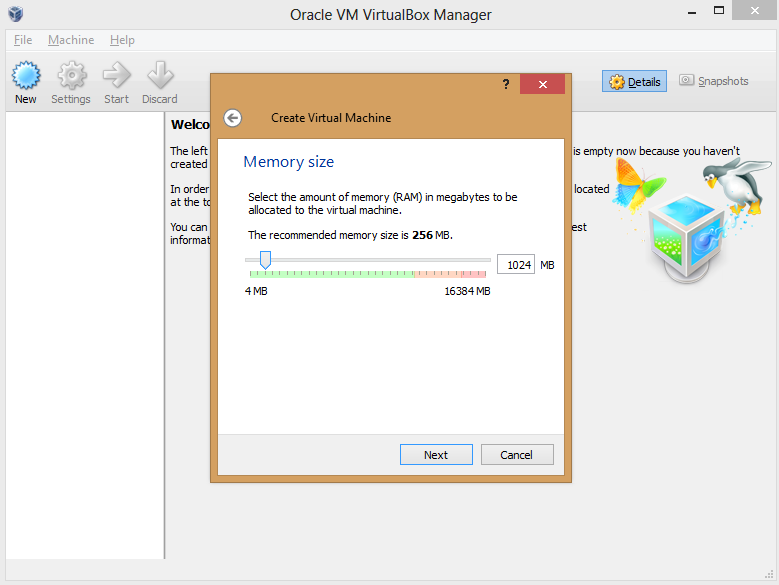
In the option screens that follow, you have to configure your VM’s hardware allocation. Give it at least 512MB of RAM if you can, though Android-x86 can run on 256MB of RAM if you’re using a resource-strapped PC. The more memory you can spare, the smoother the results will be, though you don’t want to allocate so much to Android that your native experience suffers while the VM is active.
Create a virtual hard drive using the default options, adding more storage if you wish. (Remember: Android was made for phones, so it doesn’t take much space, even with multiple apps installed.)
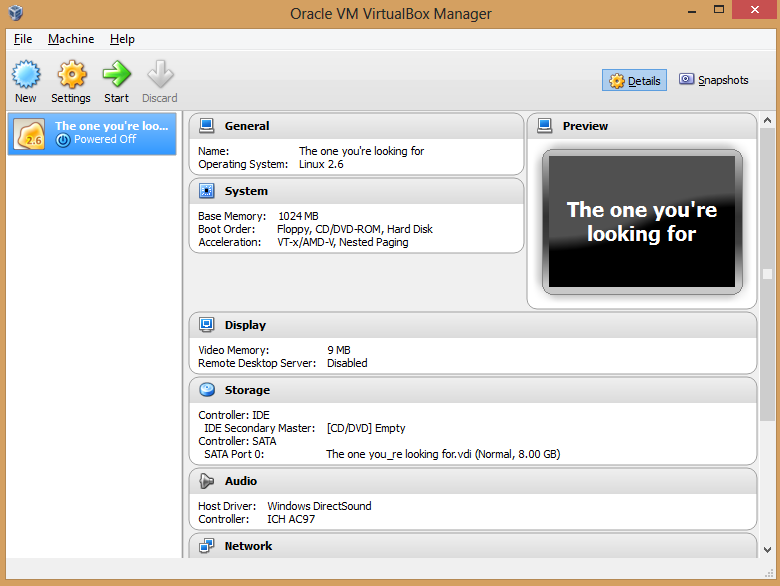
Boom! The VM appears in the VirtualBox manager.
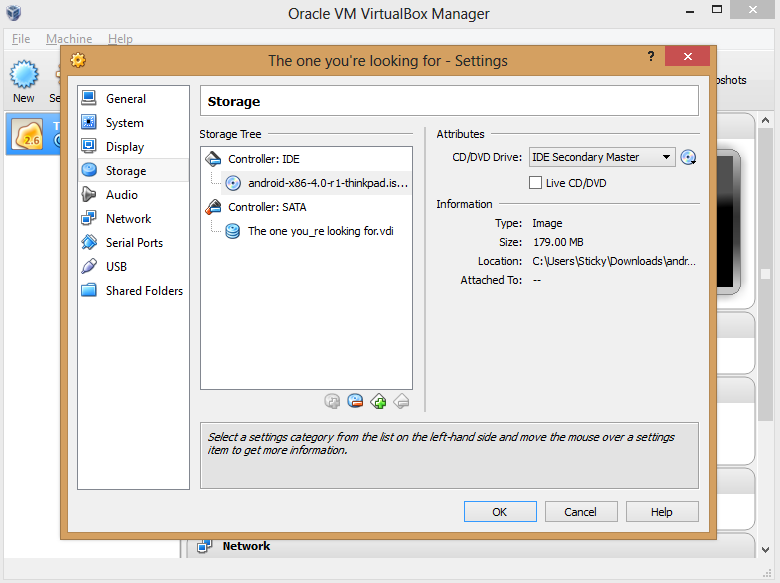
Next, you need to point the VM at your Android-x86 ISO. Click the Storage button in the VM manager and, in the window that appears, select the Empty option underneath ‘Controller: IDE’ to bring up various ‘Attributes’ options to the right. There, click the disc icon to the right of ‘CD/DVD Drive’ and select Choose a virtual CD/DVD disk file from the drop-down menu that appears. Simply browse your hard drive and select the Android-x86 ISO to load it in the virtual machine, and then click OK when you’re done.
You’re not quite finished yet, though. Click the Audio option, and in the window that appears, click the drop-down ‘Audio controller’ box and select ICH AC97. If you leave it on the default Soundblaster 16 setting, your Android VM’s audio won’t work properly.
Got it? Great! Now you’re ready to install Android on your PC. The process is a bit trickier than your standard Windows installation.
Install Android on your PC
Click the name of your Android-x86 VM in VirtualBox’s left pane, and then click the big green Start arrow. After clicking OK on any dialog boxes that pop up—be sure to read them!—you’ll quickly notice that you can’t use your mouse during installation. Use the arrow keys to scroll down to Installation, and then press Enter. Press Enter to selectCreate/Modify partitions on the next screen as well.
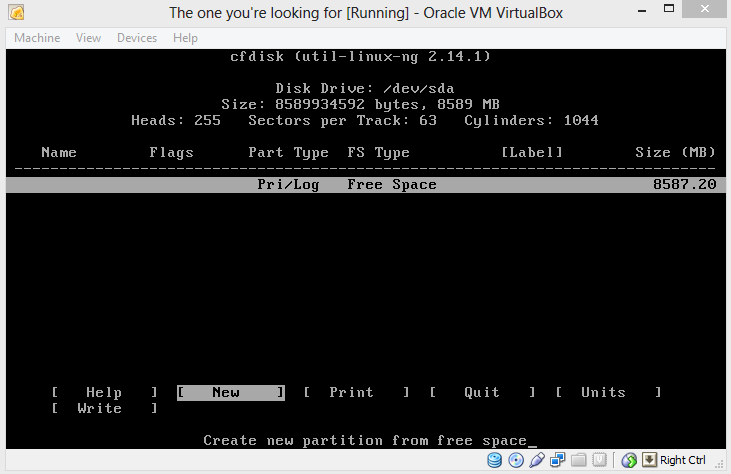
If you usually stick to graphical interfaces, the next menu may throw you for a loop, but it’s nothing to be scared of. Just navigate to New and press Enter again. Select Primary as the partition type, and then press Enter once more to set the partition to the default size. You’ll see the following screen.
Press Enter on the Bootable option, which should add ‘Boot’ under the ‘Flags’ listing, next to the computer name. With that done, select the Write option. A warning appears, threatening that writing to disk will wipe any data already on the disk. Who cares? This is a virtual machine, you silly installation software. Type yes, and then press Enter yet again.
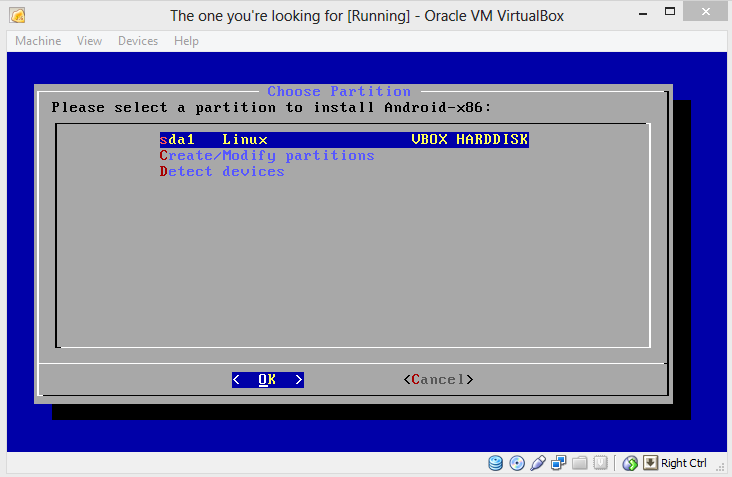
Highlight the Quit option and press Enter to return to the Choose Partition screen, which now lists the ‘sda1’ partition you created on the virtual hard drive. Press Enter again. You’ll see a list of formatting options. Select ext3, press Enter, and select Yes when asked if you really want to format the disk.
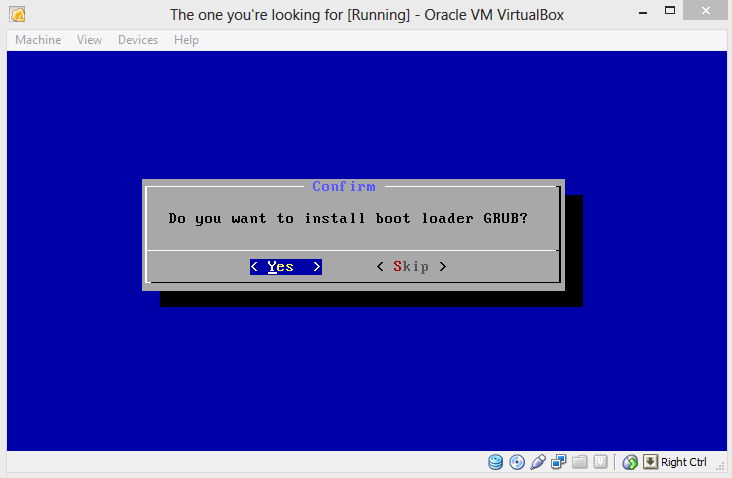
Do you want to install boot loader GRUB? Yup! You also want to install the /system directory as read/write when asked.
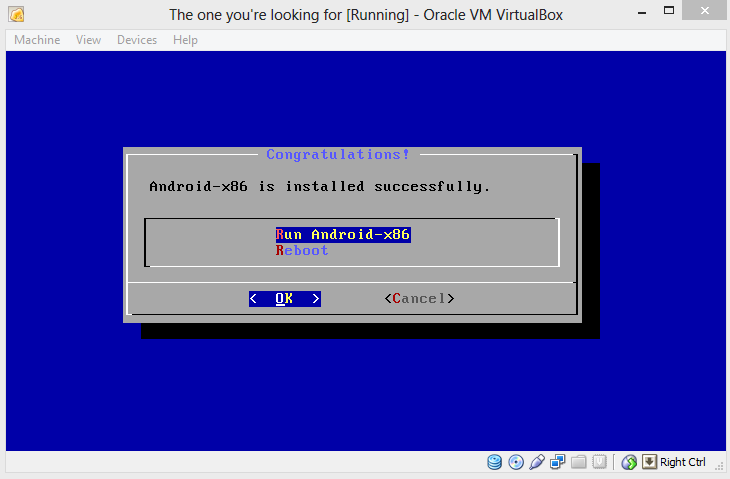
Aaaaand there’s the screen we’ve been waiting for. Run Android-x86.
Assess Android
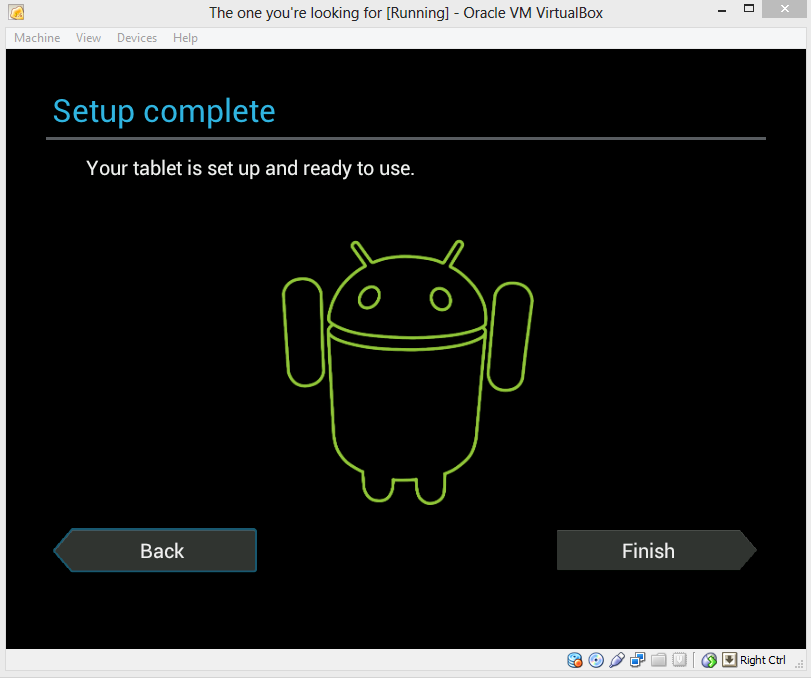
You’re going to set up the operating system the way you would on a new Android phone or tablet. It’s pretty straightforward, and you can even connect the Android-x86 VM to your Google account. But before you do that, you need to coax a mouse cursor on screen, because trying to navigate a touchscreen-optimized OS by keyboard is maddening.
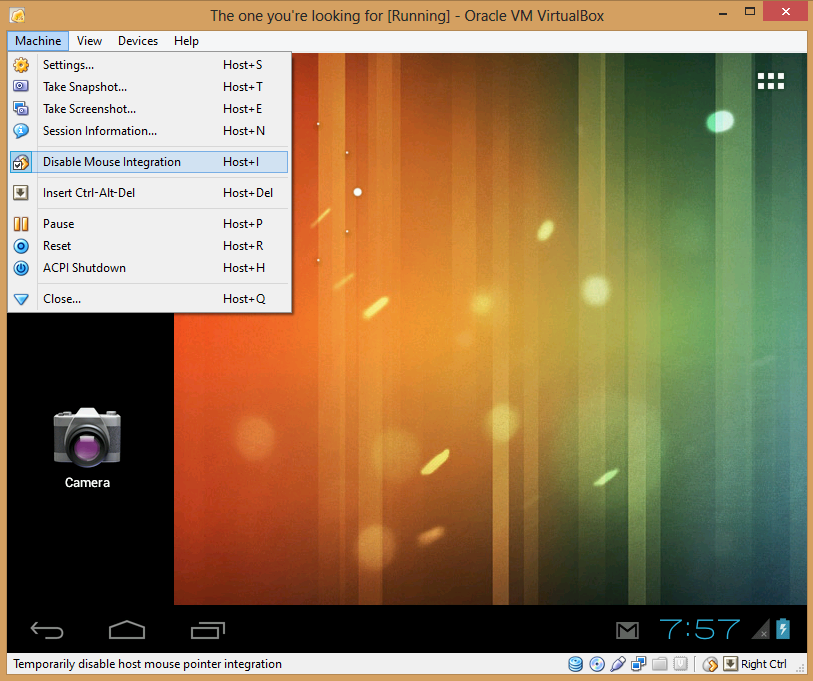
Click Machine in VirtualBox’s toolbar, and select Disable Mouse Integration. Dialog boxes may appear; if so, click through them and continue. Disabling mouse integration allows you to manually control whether your mouse is controlling your primary OS or Android-x86. Pressing the right Ctrl button on your keyboard switches between the two operating systems. To swipe, click and hold the mouse button, and then move the mouse.
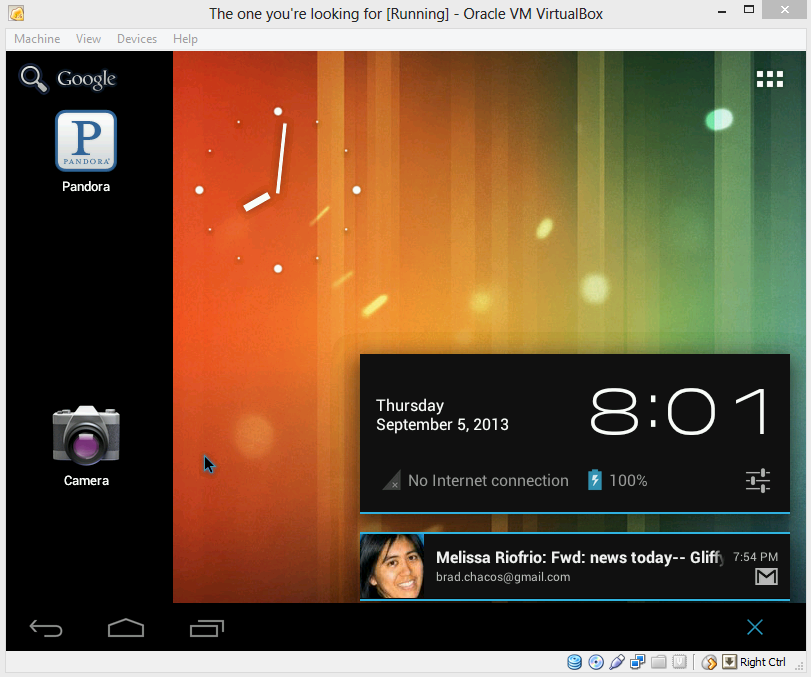
With that taken care of, you’re free to explore Android on your PC!
Don’t expect a flawless experience with Android-x86. You can’t sync your Google account’s apps to the VM, despite what the setup process implies—at least not yet. (Fortunately, Android-x86 ships with Google Play installed, and most apps I’ve tried work just fine, though you might notice the occasional wonkiness.) Nor does the virtualized OS work with any of the touchscreen displays I’ve tried. And yes, performance can be kind of poky, no matter how much RAM you toss at Android-x86.
That being said, giving Android a whirl on your PC will nevertheless give you a good feel for what’s possible on an Android-powered laptop. The result isn’t perfect, but if you give it a shot, I think you’ll wind up pleasantly surprised. Android wasn’t made for big screens, but all those smartphone-optimized apps hold up okay, and a ton of them are completely free, completely awesome, and can’t be found on proper PCs.
And hey—for what it’s worth, the Android Gmail interface blows away the ugly webmail UI.v
There are certain things you should expect from a tablet operating system. You might even want to demand them.
While a Windows PC – which a Windows 8 tablet with a PC CPU undoubtedly is – has a vast library of software available, there are a few useful things that can be experienced on Android. If you don’t currently own an Android tablet, these things (such as an improved keyboard experience) can be replicated by dual booting your Windows tablet with Android. It costs nothing, and thanks to the fast boot time on Windows 8, switching between the two operating systems is painless.
Note, however, that you’ll be restricted to apps that have support for x86 systems. These are growing in number, but don’t expect to be able to run all apps in the Play store.
What You’ll Need To Install Android On A Windows 8 Tablet
Preparation for this project is a little in-depth, especially if you’re new to Windows 8.
We’ll get the straightforward stuff out of the way first. You’ll need a USB flash drive with at least 512 MB of storage to hold the installation media; the stick should be formatted to FAT file system. Also, make sure you have a USB keyboard and a USB hub – I’d recommend a small, unpowered hub, since a powered hub may take some time to initialize – which means the keyboard won’t be connected by the time you need to press F12. So, unpowered USB hub it is.
Software is also required. Begin by downloading the Win 32 Disk Imager from Sourceforge – this is used to write the disk image to your USB stick.
Once this is downloaded, head to Intel’s Open Source Technology Center and select the Generic UEFI Installer image of the version of Android you wish to install. After download has completed, make sure you unzip the file.
Prepare The USB Stick
With Android downloaded, you’ll need to write it to the USB stick. Insert the device into your tablet or USB hub and unzip the Win 32 Disk Imager tool.
Run Win32DiskImager.exe and browse to the unzipped Android installer, selecting Save to add it to the tool.
Next, ensure that the correct drive letter for your USB stick is selected under Device, and when you’re ready click Write to begin installation.
Following completion, Win 32 Disk Imager should inform you that writing the data has completed – you’re now ready to proceed.
Configuring Your Windows 8 Tablet For Android Installation
You can’t just install a second operating system on a device designed for Windows 8 without making a few adjustments to the system setup.
First, you’ll need to ensure Secure Boot is disabled. Open Settings > Change PC Settings > Update and recovery > Recovery, and select Restart Now. From here use your arrow keys to select Troubleshoot then Advanced Options > UEFI Firmware Settings to open the BIOS.
Here, find Security in the left-hand menu and set a Supervisor password. Once this has been added, open Boot, find the Secure Boot option and set it to Disabled.
With that done, hold down the Power to restart, then hold the Windows buttons as well until the screen comes back on. This enables a quick shortcut back into the BIOS screen where you should ensure UEFI Mode is selected.
Next, switch the tablet off, and connect the USB hub directly to the USB port (as opposed to any of the ports on any docking station you might have). With the keyboard and USB stick connected to the hub, boot up your tablet PC, pressing F12. In the boot menu, use arrow keys to select the USB device and follow the instructions to setup dual boot mode and allocate space for Android using your device’s volume keys.
Different versions of the Android installer have slightly different steps. For this installation, I selected:
Do you want to preserve Windows and dual boot? Y
Do you want to resize Windows to make more space? Y (This forces a repair cycle when you boot Windows 8.)
Enter new size in MiB for Windows: Enter for default option.
Install GummiBoot bootloader? Y
Enter boot menu timeout (0=no menu)(min=0, max=60, enter=5) 15
Once you have done this the installation will proceed. Upon completion you should see the message:
“Installation now configured. Press enter to continue”
If all goes according to plan, when you next come to boot up the tablet you should see a boot menu, where you can select between Android and Windows 8.
Running Android on a Windows 8 Tablet
Certainly in my case while preparing the installation for this tutorial, I discovered that things didn’t go quite as planned. Although the repair cycle took a while (and the Acer Iconia W700 doesn’t actually tell you it is doing a repair cycle), the computer eventually booted… into Windows 8.1. A couple of reboots later and there was still no sign of the boot menu.
Inconveniently, the only way to open Android at present is to hold F12 when booting to display the boot menu, something that may be tricky in some scenarios. I also found that Bluetooth didn’t work in Windows, but once I’d booted Android, opened Settings and toggled Bluetooth,the subsequent reboot into Windows had Bluetooth back up and running.
When everything is installed, and Android booted up, it works pretty much as you might expect. Not all features are available as the x86 version is unofficial. As such you’ll need to install gApps to get things like Google Play and Gmail. This is true of any unofficial Android build and we’ll take a look at it in a future guide.
Windows 8.1 might look a lot like Windows 8, but scratch the surface and some subtle - and not-so-subtle - differences begin to appear.
If you're just getting started with Microsoft's newest operating system, these tips and tricks will turn you into an 8.1 wizard in no time at all - from booting straight to the desktop to creating system backups, there's plenty to explore in the latest release.
1. Boot to the desktop
Windows 8.1 enables you to boot straight to the desktop
Microsoft has bowed to the pressure from desktop users and given us an option to skip the Start screen after logging in. Right-click on the taskbar, choose 'Properties', then switch to the Navigation tab. Tick the 'Go to the desktop…' option to load it first instead of the Start screen.
2. Find your apps
This tiny arrow leads to all of your installed applications
The 8.1 edition of Windows pins fewer apps to the Start screen by default, and has moved the location of the full apps list - you can now find it by clicking on the down arrow in the lower left corner. Click or tap the drop-down menu by the Apps heading to change how the items are sorted.
3. Universal wallpaper
You can set the same wallpaper for your desktop and Start screen
In Windows 8.1 you can set your Start screen wallpaper to the same image used for the desktop wallpaper, if it makes life without the Start menu a little easier for you. Open up the 'Personalise' link from the Settings charm on the Start screen and your current desktop backdrop will be one of the available thumbnails.
4. Quicker shutdown
Access the shutdown and restart options from the Start button
Windows 8.1 retains the shortcut menu that appears when you right-click in the bottom left-hand corner of the desktop, but there are some new options. You can now shut the system down or log out of your account from here, rather than going through the Settings charm.
5. Configure Smart Search
If you don't want Bing search results, you can disable them
By default Windows 8.1 will look through files on your PC, in your SkyDrive account and on the web when you type a query into the Search charm, but you can modify this behaviour. Open the Settings charm then choose 'Change PC settings > Search and apps > Search' to disable Bing integration.
6. App tiles
There are now more options for the size of your live tiles
It's not exactly a headline feature, but Windows 8.1 gives you more control over the size of your app tiles on the Start screen. Right-click on a tile, choose 'Resize' from the menu at the bottom and there are four different options to pick from: Large, Wide, Medium and Small.
7. Lock screen slideshows
If you can't choose one lock screen image, set up a slideshow
Having a static photo as your lock screen picture is so Windows 8. Join the Windows 8.1 revolution by configuring a slideshow of several images instead - on the Lock screen page under 'PC and Devices' in the Settings app there's a new Slide show entry, complete with a variety of configuration options.
8. Name app groups
You can assign titles to your groups of live tiles
Each of your Start screen app tile groups can have its own heading now, if required. You could name one group 'Work' and one 'Play', to be completely unoriginal and dull, for example. Right-click on the Start screen and choose Customise to bring up the labels.
9. Display tweaks
Display settings are now available from the Start screen
Your screen resolution configuration and other related settings can now be accessed straight from the Start screen without venturing to the desktop or the Control Panel. Choose 'Settings' from the Charms bar, then 'Change PC settings', and then 'Display'.
10. Disable hot corners
You can disable the hot corners if you prefer life without them
In Windows 8 you needed a third-party tool or a registry hack to disable the 'hot corners' around the edges of your screen. In Windows 8.1, you can simply open up the Corners and Edges section of the 'PC and devices' settings page and turn off the corner navigation options.
11. IE11 Reading View
IE11's Reading Mode is compatible with most websites
The brand-new Internet Explorer 11 comes bundled with Windows 8.1, and it has some neat new features (most of which have already been seen in other browsers, but still). One of these is the Reading View, which you can access by clicking the book icon on the right of the address bar.
12. App docking
Apps can now be docked alongside each other
Windows 8 enables you dock Start screen apps to the side of the screen, and this functionality is enhanced in 8.1 - you can dock two Start screen apps and avoid the desktop altogether, and adjust the size of each pane, giving you much more flexibility over how your display looks.
13. Save to SkyDrive
Save files to SkyDrive by default to keep backups in the cloud
Windows 8.1 goes even further with SkyDrive integration than Windows 8 did - you can have all of your applications save to your SkyDrive folder by default. Open up the Change PC Settings screen, choose SkyDrive and the relevant setting is on the Files tab.
14. Find your libraries
If you miss the Libraries link you can bring it back
The libraries idea ushered in with Windows 7 helps you quickly locate all of your music, videos, documents and so on, but the Libraries link isn't shown in Windows 8.1 by default. To display it, open the View menu from the ribbon menu in File Explorer and choose 'Show Libraries' from the Navigation pane drop-down menu.
15. Sound the alarm
Windows 8.1 comes with a brand new Alarms app
Windows 8.1 has a brand new Alarms app that you can access from the Start screen. You can configure multiple alarms and choose from a variety of ringtones to wake you up or act as a reminder for something.
16. Quick calculations
The Calculator app is a new addition in Windows 8.1
Also new to the Windows 8.1 integrated apps scene is a basic calculator. Launch it from the Start screen and you can switch between Standard and Scientific modes. A handy unit conversion tool is included as well.
17. App updates
Windows Store apps now update automatically in the background
Start screen apps now update automatically, which will come as a relief to Windows 8 users who are used to having to apply the latest upgrades manually. If you want you can turn off this feature — select Settings and then App updates from inside the Store app.
18. Create a system image backup
System Image Backup is well hidden in Windows 8.1
The system image backup tool first seen in Windows 7 looks like it has vanished from the 8.1 release, but this isn't the case - it's just very well hidden. Launch the desktop Control Panel, head to the File History pane, and a System Image Backup link appears in the lower left-hand corner.
19. Edit your pictures
The integrated Photos app has some new editing features
The Start screen Photos app has been given some basic editing tools in 8.1. Open up an image and you'll find autofix shortcuts, tools for adjusting colours and shades, and rotate and crop options.
20. Get more help
The Help and Tips app can guide you around Windows 8.1
Working out all of the touchscreen, keyboard and mouse shortcuts for the new-look Windows isn't easy, so Microsoft has introduced a Help and Tips app to lend a hand. You can launch it from the Start screen and it also appears right after you've installed the new version of the OS - get the latest on Windows 8.1.